Tag: file conversion

More room to convert — bigger files, more minutes, and real priority for subscribers

More room to convert — bigger files, more minutes, and real priority for subscribers

We’ve upgraded our paid plans, with no change to prices: the upper tiers now accept larger files, Basic gets a more generous monthly allowance, and priority on paid plans now directly affects how quickly your conversions are picked up when the service is busy.

What’s new

  • Larger uploads on Pro and Ultra — more headroom for big videos, archives, presentations, and document packs, so you don’t have to split or compress files before converting
  • More monthly minutes on Basic — extra capacity for regular use, with fewer mid-month surprises
  • Genuine conversion priority — when demand is high, paid conversions move ahead of free ones, and higher tiers move ahead of lower ones
  • Same prices — Basic, Pro, and Ultra cost exactly what they did before

Exact limits can evolve over time, so the pricing page is always the source of truth for current numbers.

How priority works

When lots of people are converting at the same time, jobs are picked up in plan order:

PlanPriorityBest for
UltraHighestHeavy or batch-heavy work, largest files
ProHigherRegular work with larger files
BasicHighEveryday conversions, ad-free
FreeStandardOccasional use

During quiet periods everyone should still feel fast — the difference shows most at peak times, which is exactly when it matters.

What hasn’t changed

  • Your price — no increases on any plan
  • The free plan — still here, still capable for everyday files
  • Credit packs — still available if you’d rather not subscribe
  • Ad-free experience — all paid plans stay ad-free

Already subscribed?

You don’t need to do anything. The new limits and priority apply to your account automatically — no re-purchase, no plan switch, no settings to change.

If you’re deciding whether to subscribe: more room for real-world files, more monthly capacity where it was needed most, and a front-of-queue spot when things get busy. See Pricing for current details, or manage your plan anytime from your account.

Questions or feedback? Get in touch through our contact page.

Better success rates for AMV, AMR, WOFF2, FIG, HTML→Excel, and more

Audio and video

We improved several audio and video conversions that didn’t perform as expected. Converting MP3 (or other audio) to AMV or AMR used to fail because the right codecs weren’t available in our pipeline; we’ve added support so those conversions complete successfully. We also improved cases where you convert audio-only files to video formats like AMV: the converter now handles them correctly instead of failing. If you work with music or voice and need AMV, AMR, or similar formats, you should see better performance.

Documents and spreadsheets

We addressed problems with document and spreadsheet conversions. HTML to XLSX (or XLS/CSV) was a common failure: many HTML files were being opened as documents instead of spreadsheets, so the export step failed. We’ve improved that so HTML with tables is opened as a spreadsheet and converts to Excel or CSV reliably. We also stopped offering a few document conversions that don’t work in practice (for example, Word to BibTeX), so you’re not offered options that would always fail. PDF to SWF has a very low success rate with the tools we use, so we might phase that option out—though we may look into better ways to support it in future.

Fonts

We improved font conversions involving modern web formats. TTF and OTF to WOFF2, and WOFF2 back to TTF, were failing because of a mismatch in how the font tools were being invoked. We’ve corrected that, so these conversions run reliably. If you’re preparing fonts for the web or need to convert back to TTF, those paths should now work as expected.

Images and vector graphics

We improved image and vector conversions in two ways. For FIG (Xfig) files, we added a more reliable path: FIG to SVG, PDF, PNG, and other formats. Now, so FIG conversions succeed much more often. For Corel CMX, we narrowed what we offer: converting from vector formats (e.g. SVG, CDR, WMF) to CMX works, and we kept those; converting from raster images (PNG, JPEG, etc.) to CMX doesn’t work reliably in the tools we use, so we removed those options to avoid repeated failures. You’ll only see CMX as an output when the source format can actually be converted to it.

Enhanced URL Download: Making File Conversion Faster, Safer, and More Reliable

In today’s digital world, we’re constantly working with files from various online sources. Whether you’re downloading a PDF from a website, converting an image from a cloud storage link, or transforming a document shared via URL, the process needs to be seamless, secure, and efficient.

We’re excited to announce significant enhancements to our URL download functionality that make converting files from web links faster, more secure, and more reliable than ever before. These improvements touch every aspect of the user experience, from initial validation to final conversion.

What’s New: A Smarter Download System

Two-Phase Validation for Better Accuracy

One of the most noticeable improvements is our new two-phase validation system. When you paste a URL, the system now performs an intelligent pre-check before starting any conversion. This means you’ll know immediately if your file is accessible and in the correct format, saving you time and frustration.

The first phase validates the URL and checks the file’s basic properties—ensuring it exists, is accessible, and matches what you’re trying to convert. Only after successful validation does the system proceed to the actual conversion phase. This approach eliminates wasted processing time on invalid or inaccessible files.

Enhanced Security and Content Filtering

Security is paramount when dealing with files from external sources. Our enhanced URL download system includes sophisticated filtering mechanisms that protect users from potentially harmful content. The system automatically checks URLs against comprehensive security criteria before processing, ensuring that only safe, legitimate files are downloaded and converted.

This multi-layered approach examines domains, URL patterns, and content characteristics to make intelligent decisions about what should be processed. Users can convert files with confidence, knowing that the system has their security in mind.

Improved Error Handling and User Feedback

Nobody likes cryptic error messages. Our enhanced system provides clear, actionable feedback when something goes wrong. Whether a URL is inaccessible, a file format isn’t supported, or a download times out, you’ll receive specific information about what happened and what you can do about it.

The system now distinguishes between different types of errors—network issues, file format problems, access restrictions, and more—providing appropriate guidance for each situation. This makes troubleshooting much easier and helps users understand exactly what’s happening with their conversions.

Better Support for Modern Web Content

The modern web is complex, with dynamic content, consent banners, and responsive layouts. Our enhanced system handles these challenges more intelligently, especially when converting web pages to PDF format. The system can now better handle cookie consent dialogs, render desktop layouts correctly, and process modern web technologies more reliably.

For HTML-to-PDF conversions specifically, the system now ensures that websites render in their full desktop layout, producing professional-looking PDFs that accurately represent the original content. This is particularly useful for archiving web pages, creating documentation, or sharing web content in a more permanent format.

Performance Improvements

Under the hood, numerous optimizations make the entire process faster and more efficient. The system now handles downloads more intelligently, with better resource management and improved processing pipelines. These improvements mean shorter wait times and more reliable conversions, even during peak usage periods.

The enhanced architecture also provides better scalability, allowing the system to handle more concurrent downloads without compromising performance or reliability.

What This Means for You

For everyday users, these enhancements translate to:

  • Faster conversions: Pre-validation means no wasted time on invalid files
  • Better reliability: Improved error handling and progress tracking reduce failed conversions
  • Enhanced security: Automatic filtering protects against potentially harmful content
  • Clearer feedback: You always know what’s happening with your conversion
  • Better results: Improved handling of modern web content produces higher-quality outputs

Looking Forward

These enhancements represent a significant step forward in making file conversion from URLs as seamless as possible. The system is now more intelligent, more secure, and more user-friendly, while maintaining the speed and reliability that users expect.

Whether you’re converting a single file or processing multiple URLs, the enhanced system provides a smoother, more reliable experience from start to finish. The improvements work behind the scenes to ensure that your conversions complete successfully, with clear feedback at every step.

Try It Today

The enhanced URL download functionality is available now. Simply paste a URL into the conversion interface and experience the improvements firsthand. The system will guide you through validation, show you real-time progress, and deliver your converted file with the reliability and security you deserve.

We’re committed to continuously improving the user experience, and these enhancements to URL downloads are just one example of that commitment. As always, we welcome your feedback and suggestions as we continue to refine and enhance our services.


Experience the difference with our enhanced URL download system. Faster, safer, and more reliable file conversion is just a URL away.

New Negate Option: Invert Colors While Converting PCX to PDF

We’re excited to introduce a powerful new advanced option for image conversions: the Negate feature, which allows you to invert colors in your images during conversion. This is particularly useful when converting older PCX files to PDF format, where you might need to create negative effects or adjust the color scheme for better readability or archival purposes. Try it now on our PCX to PDF converter.

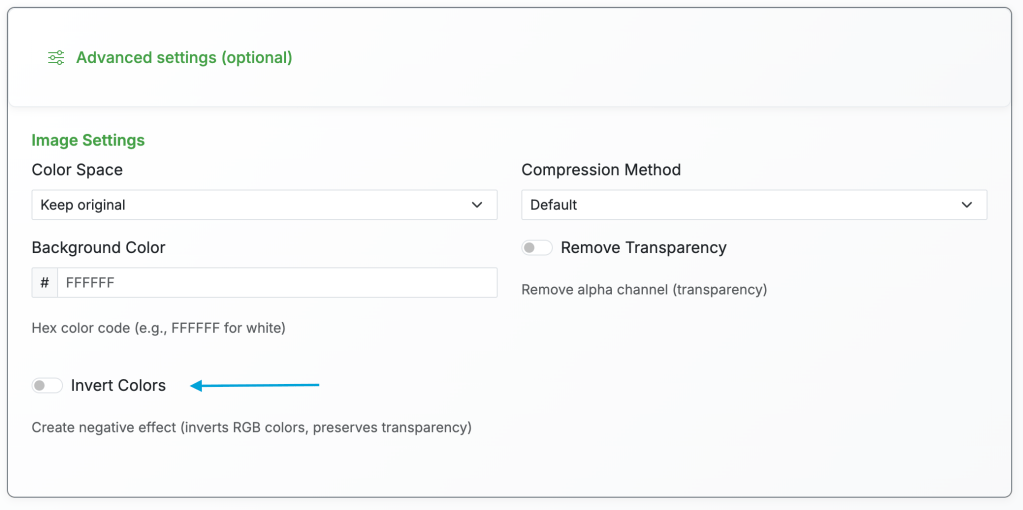
The “Invert Colors” option appears in the advanced options section when converting PCX to PDF.

What is the Negate Option?

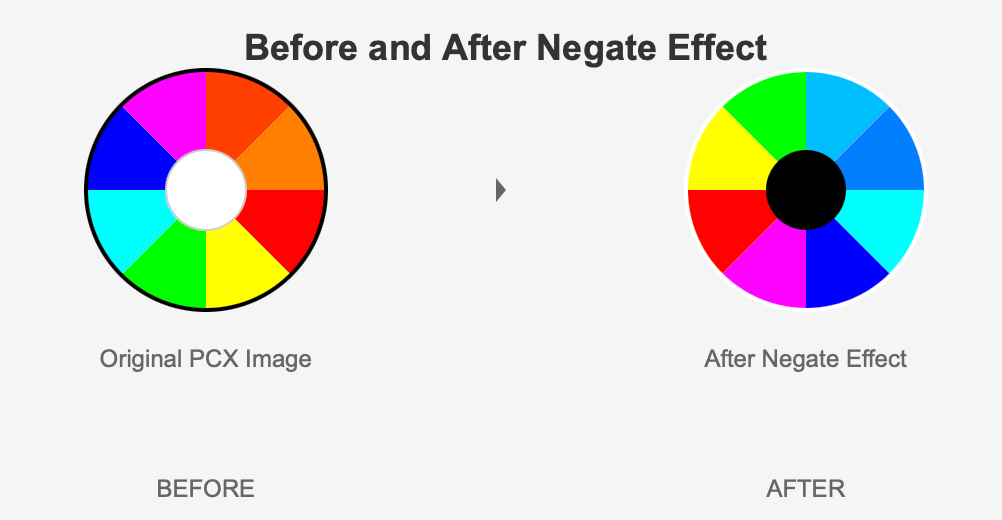
The negate option uses advanced color inversion technology to create a negative effect on your images. When enabled, it inverts all RGB color channels—white becomes black, red becomes cyan, blue becomes yellow, and so on. What makes it special is that it preserves the alpha channel (transparency), so any transparent areas in your image remain transparent even after inversion.

Why Use Negate for PCX to PDF Conversion?

PCX files are often legacy images from older systems, and they may have been scanned or created with inverted color schemes that don’t display well in modern PDF viewers. By using the negate option during conversion, you can quickly correct these color issues without needing separate image editing software. This is especially valuable for archival work, where you might be digitizing old documents or images that need color correction. Additionally, some PCX files might have been created as negatives for printing purposes, and converting them to PDF with negation can restore them to their intended appearance.

Step-by-Step Guide: Using Negate for PCX to PDF Conversion

  1. Upload your PCX file – Navigate to our PCX to PDF converter and upload your PCX file by clicking the upload area or dragging and dropping it.
  2. Select PDF as output format – Choose PDF from the format dropdown menu.
  3. Click “Fine-tune” or “Advanced Options” – This button reveals additional image settings that aren’t shown by default.
  4. Enable “Invert Colors” – Look for the “Invert Colors” checkbox in the advanced options section and click it to enable the negate feature. You’ll see a description confirming it creates a negative effect while preserving transparency.

Example showing a PCX image before and after applying the negate option during PDF conversion.

  1. Adjust other settings (optional) – If needed, you can modify other settings like color space before converting.
  2. Click “Convert” – Start the conversion process. The system will process your file and apply the color inversion.
  3. Download your PDF – Once conversion is complete (usually just a few seconds), download your PDF file with the inverted colors. If you’re not satisfied, simply upload again and try different settings.

Practical Use Cases

Beyond PCX to PDF conversion, the negate option is useful for a variety of scenarios. Graphic designers might use it to quickly create negative versions of logos or images for design mockups. Photographers converting RAW or scanned images might find it helpful for correcting inverted scans or creating artistic effects. Archivists working with old document scans can use it to improve readability when original documents had poor contrast or were scanned incorrectly.

Conclusion

The new negate option adds another powerful tool to our image conversion arsenal, making it easier than ever to manipulate images during format conversion. Whether you’re working with legacy PCX files, creating artistic effects, or correcting color issues in scanned documents, this feature provides a simple, one-click solution that preserves image quality and transparency. Try it out now on our PCX to PDF converter and discover how color inversion can enhance your workflow.