Tag: pdf

New options on our PDF, video, and image tools

New options on our PDF, video, and image tools

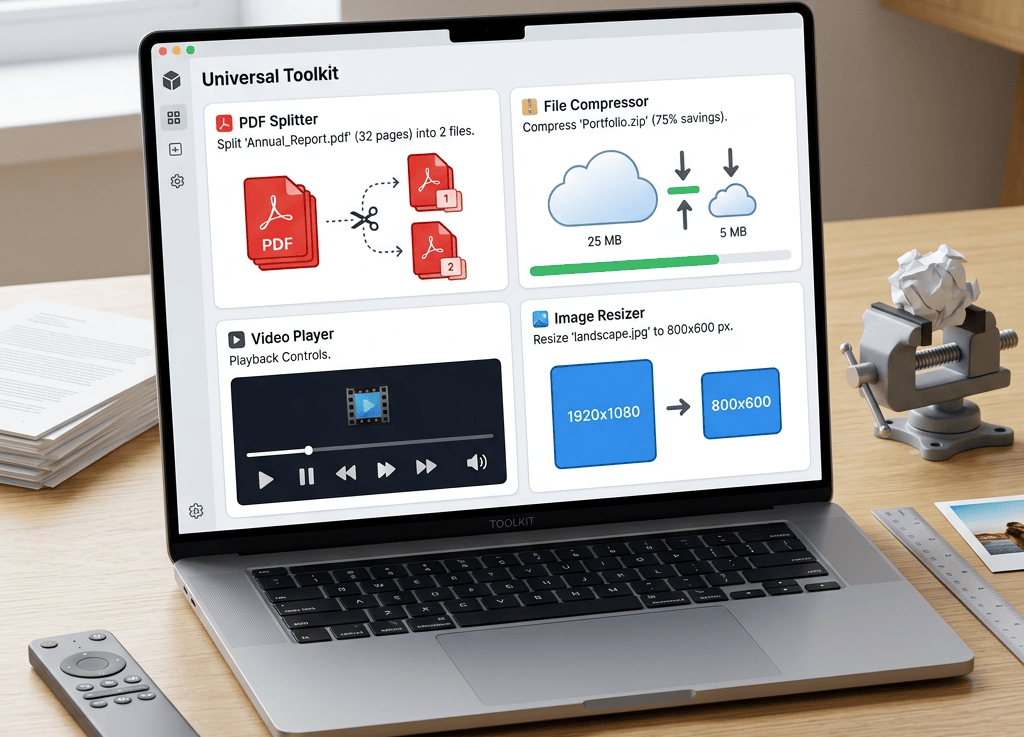
A lot of everyday file jobs are the same: pull a chapter out of a PDF, shrink a scan for email, make a video small enough to upload, or resize a photo for a form. The tools were already there. What’s new is the settings on the page, so you can pick the result you want before you hit convert.

Here’s a practical tour of the options, and when to use which tool.

Split PDF vs Extract Pages

These two look similar. They are not.

  • Split PDF gives you a ZIP of separate files. Each page or range becomes its own PDF.
  • Extract Pages keeps one PDF. The pages you choose stay together in a single download.

Use Split PDF when a portal wants one file per page, when you need odd and even pages as individual documents, or when you want a ZIP of chapters. Use Extract Pages when you want pages 3–7 as one handout, or all the odd pages as a single duplex-style PDF.

Split modes

On Split PDF, choose how the ZIP is built:

  • Custom ranges — each comma-separated group becomes its own file. 2-5,7 means two PDFs: pages 2–5, and page 7.
  • Every page — one PDF per page.
  • Odd pages — pages 1, 3, 5, … each as its own file.
  • Even pages — pages 2, 4, 6, … each as its own file.
  • Fixed page count — groups of 2, 3, 5, or 10 pages (or your own number). The last file may have fewer pages.

Your original upload is unchanged. You download new files.

Extract modes

On Extract Pages, choose:

  • Custom pages — a list or range, still one PDF.
  • Odd pages — every odd page, combined.
  • Even pages — every even page, combined.

That’s the duplex trick: scan a stack, extract odds or evens, and you get one file instead of dozens.

Compress a PDF without guessing

Compress PDF now has a compression level and a colour option:

  • High — smallest file. Fine for email and on-screen reading.
  • Medium — the default. A sensible balance for most documents.
  • Low — sharper images, larger file.
  • Max quality — keep as much detail as possible.

Turn on Grayscale when colour doesn’t matter (forms, contracts, photocopies). That often shrinks the file further.

If you merged several PDFs and the result is still huge, compress the merged file as a second step. Merge itself keeps the pages as they are; it does not re-encode them.

Compress video: codec, speed, and size

Compress Video now lets you choose:

  • H.264 — the compatible default. Plays almost everywhere.
  • H.265 (HEVC) — usually smaller at the same quality. Some older phones and players struggle with it.
  • Encoding speed — Very fast, Medium, or Slow. Slower encoding typically makes a smaller file at the same quality.
  • Resolution — keep the original, or drop to 1080p, 720p, or 480p.
  • Quality (CRF) — lower numbers look better and cost more bytes. Around 23 is a solid starting point.

For WhatsApp, email, or a course upload, try H.264, 720p, and a slightly higher CRF. For archiving a recording you’ll watch on a modern device, H.265 and a slower preset are worth the extra wait.

Resize images without stretching them

Resize Image now has quick sizes (1920×1080, 1280×720, 800×600, and “640 wide” / “480 tall”) plus a lock aspect ratio switch.

Leave the lock on, type one dimension, and the other follows so faces and logos don’t squash. Unlock it only when you truly want a different shape.

Rotate selected PDF pages

Rotate PDF still turns pages 90°, 180°, or 270°. You can now target:

  • All pages
  • Odd pages
  • Even pages
  • A custom range such as 1-3,5,7-9

That’s useful for mixed scans: landscape tables on even pages, portrait text on odd pages.

Flatten, merge, and the rest of the PDF toolbox

Flatten PDF turns forms and annotations into a static document. If the file is password-protected, you can enter the source password on the page. Optional compression is there if you want a smaller flattened file at the same time.

Merge PDF still joins files in list order. After a merge, send the result through Compress PDF if you need a smaller download.

Protect, unlock, crop, organise, remove pages, and extract images are on the same PDF tools list. Each page now spells out what that tool does, so you spend less time guessing between similar names.

A short checklist

  1. Need separate files in a ZIP? Split PDF.
  2. Need those pages in one PDF? Extract Pages.
  3. Need a smaller PDF? Compress PDF (try Medium, then High if it’s still large).
  4. Need a smaller video? Compress Video (H.264 + 720p is a safe first try).
  5. Need a photo to fit a box? Resize Image with aspect lock on.

All of these run in the browser. Upload, pick the options, convert, download. No desktop suite required.

Convert PDF to Markdown or JSON Online — With OCR for Scanned Documents

Convert PDF to Markdown or JSON Online — With OCR for Scanned Documents

PDFs are made for sharing, not reuse. Copy-pasting from them mangles headings, breaks tables, and loses lists, as anyone who has tried to move a PDF into a wiki, a repo, or an AI tool knows.

So we’ve added two new conversions to FreeFileConvert: PDF to Markdown and PDF to JSON. Both use layout-aware parsing that understands your document’s structure (headings, paragraphs, tables, lists) rather than scraping raw text off the page.

Markdown gives you clean, editable text for any editor, GitHub, or note app. JSON gives you the same content as machine-readable data, with the layout preserved. And if your PDF is a scan rather than a digital file, an OCR toggle reads text straight from the images, with support for English, Spanish, French, German, Chinese, Arabic, and more.

Digital PDF or scan?

The test is simple: can you select text in your PDF viewer?

If yes, it’s a digital document made from Word, Google Docs, LaTeX, or an export. Leave OCR off (the default). The full document is processed with no page cap, and it’s fast.

If not, your PDF is pictures of pages, like a scanned invoice or a photographed contract. Open Fine-tune and switch on Scan or photograph (OCR). Since OCR is slower, only the first 10 pages are processed, so split longer scans into chunks. Setting the document language noticeably improves accuracy for non-English scans.

How to convert

Go to freefileconvert.com, upload your PDF, and pick MD or JSON as the output format. Open Fine-tune if you need OCR or a language setting, then convert and download. Nothing to install; it runs in your browser.

Markdown or JSON?

Pick Markdown when a human will read or edit the result: documentation, blog drafts, notes, READMEs, wiki pages.

Pick JSON when a machine will consume it: automation, content migration, search indexing, or anywhere downstream tools need to know what’s a heading, a table, or body text.

Built for LLMs and AI workflows

Language models work far better with structured text than raw PDFs. Paste converted Markdown into ChatGPT, Claude, or Gemini, and the model sees real headings and tables instead of jumbled extracted text, so answers get noticeably sharper. The clean output also uses fewer tokens, leaving more room in the context window.

For developers, Markdown’s heading structure gives RAG pipelines natural chunk boundaries, so retrieval returns coherent sections rather than arbitrary fragments. Converted specs and API docs can live in your repo where tools like Cursor and Copilot pick them up as context. The JSON output suits agents extracting fields from invoices, contracts, or reports, since the structure arrives as data rather than free text.

Combine this with OCR, and even a photographed contract becomes LLM-ready text in one step.

Tips for best results

Keep OCR off for born-digital PDFs, since it’s faster and more accurate. Reach for it only when text isn’t selectable, and set the language for non-English scans. Split long scans into chunks of 10 pages or fewer. Very complex layouts may need a quick cleanup afterwards, which is still far faster than retyping.

Merge PDFs Online for Free – Plus Powerful PDF Tools in One Place

If you work with documents regularly, you’ve probably needed to merge multiple PDFs into a single file — contracts, reports, scanned pages, or course notes. Our new PDF Merge tool makes this fast, secure, and completely browser-based, with no software to install.

Even better, it sits alongside a full suite of PDF utilities (split, compress, rotate, organize, extract pages, extract images, unlock, protect, and more), so you can handle your entire PDF workflow in one place.


What the PDF Merge Tool Does

The PDF Merge tool lets you combine multiple PDF files into a single document while preserving page order and quality.

Key benefits:

  • Combine multiple PDFs into one file
  • Preserve original quality as much as possible
  • Merge in the exact order you choose
  • 100% browser-based, no installation required
  • Secure uploads over HTTPS and automatic file deletion

How to use the PDF Merge tool:

  1. Open the Merge PDF tool on the site.
  2. Click the “Browse” or “Choose File” button and select your first PDF.
  3. Select additional PDF files to add them to the list in the order you want them merged.
  4. Click the “Merge PDFs” button.
  5. Wait a moment while the conversion runs, then download your combined PDF file.

Typical use cases:

  • Combining multiple scanned PDFs into a single document
  • Merging a main contract with all annexes or schedules
  • Consolidating monthly reports into one easy-to-share file
  • Assembling course materials (slides, notes, handouts) into one PDF

Why Merge PDFs Instead of Sending Separate Files?

Merging PDFs solves several real-world problems:

  • Easier sharing: One file is simpler to send, store, and refer to than a collection of attachments.
  • Better readability: Readers can scroll through a single, continuous document rather than opening multiple files.
  • Less room for error: You reduce the risk of forgetting to attach a critical document.
  • Cleaner archiving: A merged file is easier to archive, search, and back up.

If you routinely send multiple related PDFs, merging them into one file before you share them can save you and your recipients a lot of time.


Other PDF Tools You Can Use

The Merge tool is part of a larger toolkit for working with PDFs. Here are the other major PDF tools you can highlight and link to.

  1. Split PDF

Split PDF lets you split a single PDF into multiple PDFs.

You can:

  • Extract specific page ranges (for example, 1–3, 10–12)
  • Remove unwanted sections and keep only what you need
  • Split large documents into more manageable parts

This is ideal when you only need to share a single chapter or section from a long document, or when an email system limits attachment sizes.

  1. Compress PDF

Compress PDF reduces the file size of your documents while aiming to preserve readability.

You can:

  • Shrink large scanned PDFs to a fraction of their original size
  • Make documents easier to email or upload
  • Optimize PDFs for web or mobile viewing

This is especially useful for scanned documents, presentations with images, and reports loaded with graphics.

  1. Rotate PDF

Rotate PDF fixes orientation problems without re-scanning your documents.

You can:

  • Rotate all pages in a document
  • Rotate only a specific page range (for example, pages 2–4 or 5–10)
  • Choose 90°, 180°, or 270° rotations

This is perfect when some pages were scanned sideways or upside down, and you want to correct them once and for all.

  1. Crop PDF

Crop PDF lets you trim away unwanted margins and content.

You can:

  • Remove large blank margins from scans
  • Hide headers, footers, or sidebars you don’t need
  • Focus on the main content area in your document

Cropping is useful if you want your PDF to look better on smaller screens or when printing.

  1. Organize / Reorder PDF Pages

Organize PDF lets you rearrange pages inside a PDF.

You can:

  • Change the order of pages (for example, 3, 1, 4, 2)
  • Group related sections together
  • Fix mistakes where pages were added in the wrong order

This is helpful when preparing reports, pitch decks, or multi-part forms where the flow matters.

  1. Extract Pages from PDF

Extract PDF Pages creates a new PDF from just the pages you select.

You can:

  • Extract a single page
  • Extract multiple pages (for example, 5, 7–9)
  • Extract a range of pages into a separate document

This is great when you only want to send or keep a specific portion of a larger document.

  1. Remove Pages from PDF

Remove Pages lets you delete unwanted pages and keep the rest.

You can:

  • Remove blank pages from scans
  • Remove title pages or back pages you no longer need
  • Clean up a PDF after merging or scanning multiple documents

It’s a quick way to tidy up documents before sending them to clients or colleagues.

  1. Extract Images from PDF

Extract Images pulls all embedded images out of a PDF.

You can:

  • Extract photos or diagrams contained in a document
  • Download all images as individual files or as a single ZIP archive
  • Choose formats like JPG, PNG, or TIFF (depending on the tool’s options)

This is useful if you want to reuse images from a brochure, report, or presentation.

  1. Unlock PDF

Unlock PDF (with the correct password) removes restrictions so you can:

  • Open your own password-protected files more easily
  • Merge or edit PDFs that were previously locked
  • Print documents that had print restrictions (when you have the right to do so)

Only use this on files you own or have permission to unlock.

  1. Protect PDF

Protect PDF lets you add password protection and encryption to your documents.

You can:

  • Require a password to open the file
  • Use modern, secure encryption so your content is protected
  • Share sensitive PDFs with more confidence

This is ideal for contracts, financial statements, HR documents, and anything confidential.


Using Multiple PDF Tools Together

The real power comes from combining these tools in a workflow. For example:

  • Compress → Merge → Protect
    Compress several PDFs, merge them into one, and then password-protect the final document.
  • Split → Organize → Merge
    Split out sections from several PDFs, reorder the pages, and merge into a new, clean master document.
  • Extract Pages → Rotate → Compress
    Extract the pages you need, fix their orientation, and compress the result for easy sharing.

Because all the tools share the same platform, the experience is consistent: once you understand one tool, the others feel familiar and straightforward.


Security and Privacy

Handling your PDFs securely is critical. The platform is designed with privacy in mind:

  • Files are transferred over secure HTTPS connections.
  • Converted files are kept only for a limited time, then automatically removed.
  • You can manually delete a file immediately after download using the delete option on the results page.
  • Strong encryption is used when protecting PDFs, to avoid weak legacy algorithms.

This makes the tools suitable for sensitive work like contracts, invoices, legal documents, and internal reports.


Conclusion

The new PDF Merge tool makes combining multiple PDFs into a single, polished document simple and fast. When you combine it with the rest of the PDF toolkit — Split, Compress, Rotate, Crop, Organize, Extract Pages, Extract Images, Unlock, and Protect — you get a complete set of tools to manage almost any PDF task, from simple edits to complex workflows.

Use the Merge tool the next time you need to assemble a report, bundle up contracts, or consolidate study materials. Then explore the other PDF tools to streamline everything around it, all from your browser and all in one place.