
A slide deck is great in a meeting room, but it is awkward everywhere else. You cannot drop a PPTX into a WhatsApp chat and expect it to play, and most social sites will not take one at all. A video file plays almost anywhere.
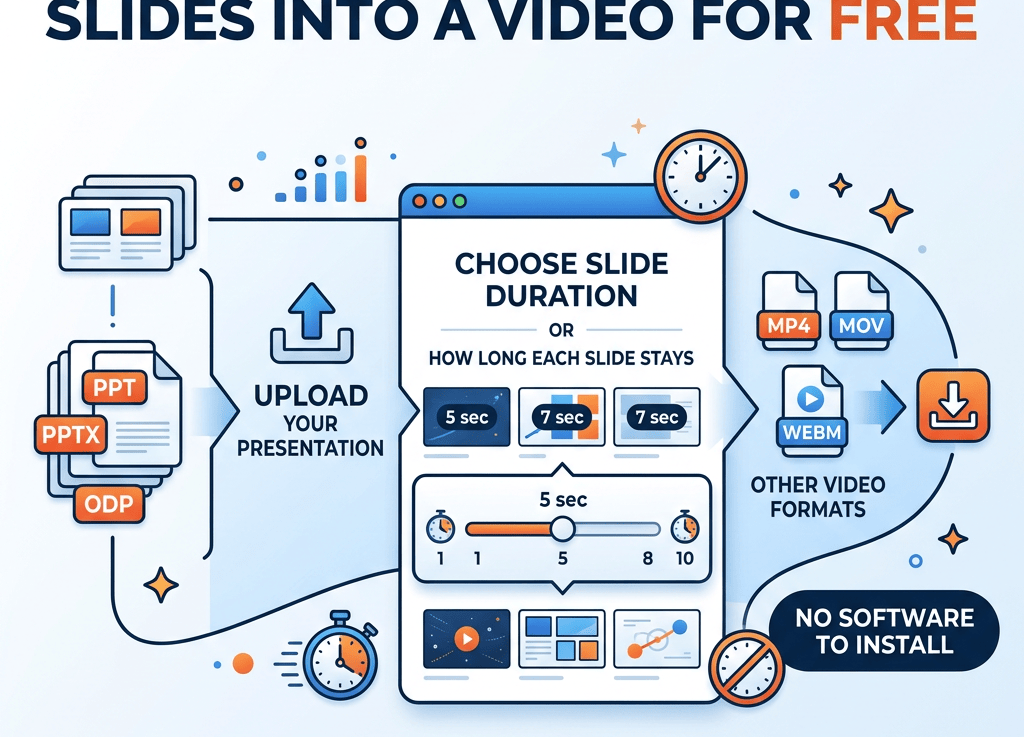
FreeFileConvert can now turn a presentation into a video in your browser. Upload the deck, pick a video format, and choose how long each slide should stay on screen.
Which files can you convert?
You can upload PowerPoint files (PPT, PPTX, PPTM, PPS, POT and POTM) as well as ODP files from LibreOffice or OpenOffice Impress.
Each of those can become any of these video formats:
- MP4. The safe choice. It plays on phones, laptops, smart TVs and every major website.
- MOV. Handy if you edit in iMovie or Final Cut, or work mostly on Apple devices.
- M4V. Apple’s version of MP4, used by iTunes and Apple TV.
- WebM. Made for the web. It is a good fit if you are putting the video on your own site.
- MKV. Popular with media players like VLC and Plex.
- AVI and FLV. For older software and players that expect them.
- 3GP. For very old phones and basic handsets.
If you are not sure, pick MP4.
How to convert a presentation to video
- Go to PPTX to MP4, or open the converter on the homepage.
- Upload your presentation.
- Choose your video format.
- Open Advanced options and set the slide duration if you want something other than 5 seconds.
- Click convert, then download your video when it is ready.
Choosing how long each slide shows
Every slide stays on screen for the same amount of time. The default is 5 seconds, and you can pick anything from 1 to 30 seconds.
The length of the finished video is simply the number of slides multiplied by that time. A 12 slide deck at 5 seconds makes a one minute video. The same deck at 10 seconds makes a two minute video.
Some rough guides:
- 2 to 3 seconds for photo slideshows or slides with a single big image.
- 5 seconds for slides with a heading and a few short points.
- 10 seconds or more for slides people need to actually read, such as charts, tables or instructions.
Try reading a slide aloud at a normal pace. That is usually about the right length.
What ends up in the video
Each slide becomes a sharp still image in the video, exactly as it looks in the slide view. Text, pictures, shapes, charts and backgrounds all come through. A standard 16:9 deck comes out at full HD, 1920 by 1080.
A few things do not carry over, so it is worth knowing before you convert:
- Animations and transitions. You get the finished slide, not the build. Items that fly in will already be in place.
- Sound and narration. The video is silent. You can add music or a voiceover afterwards in any video editor.
- Videos inside slides. An embedded clip shows as its still frame rather than playing.
- Speaker notes. Only what is on the slide itself appears.
- Custom timings. Timings you set in PowerPoint are ignored. Every slide uses the duration you choose.
Tips for a better result
- Use fonts everyone has. If you used an unusual font, it may be swapped for a similar one. Common fonts like Arial, Calibri or Times New Roman are the safest.
- Keep text large. Videos are often watched on phones. If it is hard to read on a laptop, it will be harder on a small screen.
- Put the final step of any animation on the slide. Because builds are not played, make sure the slide makes sense in its finished state.
- Split very dense slides. Two simpler slides at 5 seconds each are easier to follow than one crowded slide at 10.
What people use it for
- Sharing a presentation in a chat app or by email, where a video simply plays.
- Posting a slideshow to YouTube, LinkedIn, Facebook or Instagram.
- Running a looping display on a screen in a shop, office reception or event stand.
- Sending a class or training deck to people who do not have PowerPoint.
- Making a quick photo slideshow for a birthday, wedding or memorial.
Common questions
Do I need PowerPoint installed?
No. Everything happens on our servers. All you need is a web browser.
Can I add music to the video?
Not during the conversion. Download the video, then add a soundtrack in a free editor such as Clipchamp, iMovie or CapCut.
Can different slides have different timings?
Not yet. One duration applies to every slide. If a slide needs longer, duplicating it is a simple workaround.
Which format should I pick for YouTube or social media?
MP4. It is accepted everywhere and plays smoothly on phones.
Try it now
Pick the conversion you need:
Upload your deck, choose how long each slide shows, and you will have a video ready to share in a minute or two.

