
We’re excited to introduce a powerful new advanced option for image conversions: the Negate feature, which allows you to invert colors in your images during conversion. This is particularly useful when converting older PCX files to PDF format, where you might need to create negative effects or adjust the color scheme for better readability or archival purposes. Try it now on our PCX to PDF converter.
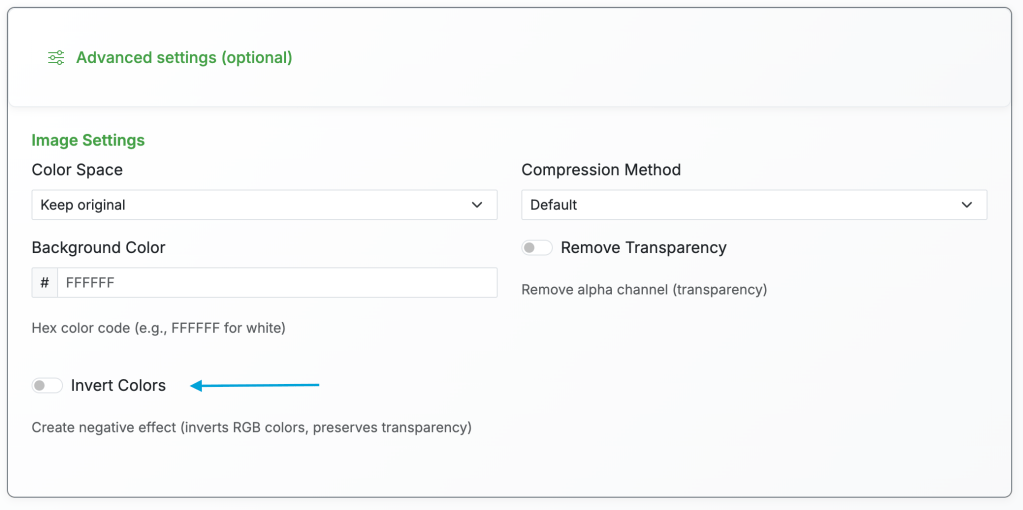
The “Invert Colors” option appears in the advanced options section when converting PCX to PDF.
What is the Negate Option?
The negate option uses advanced color inversion technology to create a negative effect on your images. When enabled, it inverts all RGB color channels—white becomes black, red becomes cyan, blue becomes yellow, and so on. What makes it special is that it preserves the alpha channel (transparency), so any transparent areas in your image remain transparent even after inversion.
Why Use Negate for PCX to PDF Conversion?
PCX files are often legacy images from older systems, and they may have been scanned or created with inverted color schemes that don’t display well in modern PDF viewers. By using the negate option during conversion, you can quickly correct these color issues without needing separate image editing software. This is especially valuable for archival work, where you might be digitizing old documents or images that need color correction. Additionally, some PCX files might have been created as negatives for printing purposes, and converting them to PDF with negation can restore them to their intended appearance.
Step-by-Step Guide: Using Negate for PCX to PDF Conversion
- Upload your PCX file – Navigate to our PCX to PDF converter and upload your PCX file by clicking the upload area or dragging and dropping it.
- Select PDF as output format – Choose PDF from the format dropdown menu.
- Click “Fine-tune” or “Advanced Options” – This button reveals additional image settings that aren’t shown by default.
- Enable “Invert Colors” – Look for the “Invert Colors” checkbox in the advanced options section and click it to enable the negate feature. You’ll see a description confirming it creates a negative effect while preserving transparency.
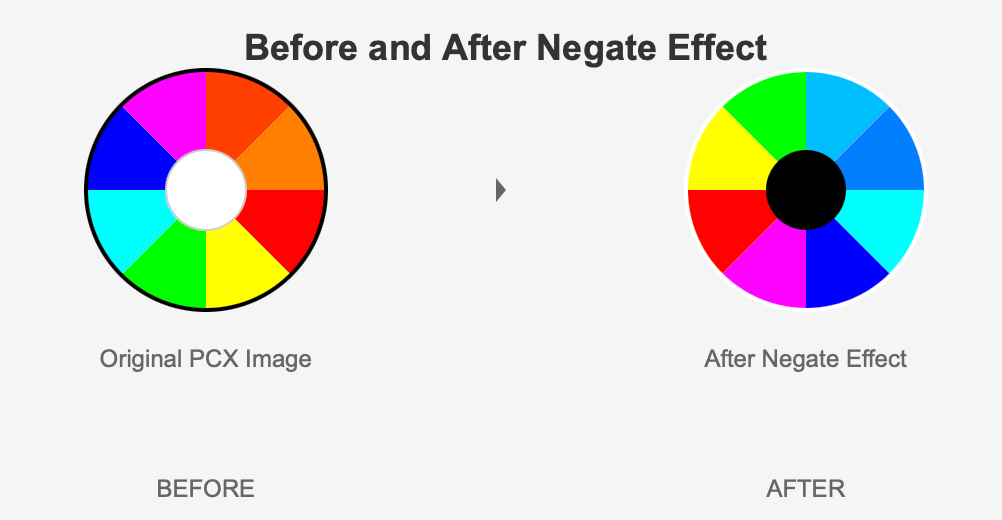
Example showing a PCX image before and after applying the negate option during PDF conversion.
- Adjust other settings (optional) – If needed, you can modify other settings like color space before converting.
- Click “Convert” – Start the conversion process. The system will process your file and apply the color inversion.
- Download your PDF – Once conversion is complete (usually just a few seconds), download your PDF file with the inverted colors. If you’re not satisfied, simply upload again and try different settings.
Practical Use Cases
Beyond PCX to PDF conversion, the negate option is useful for a variety of scenarios. Graphic designers might use it to quickly create negative versions of logos or images for design mockups. Photographers converting RAW or scanned images might find it helpful for correcting inverted scans or creating artistic effects. Archivists working with old document scans can use it to improve readability when original documents had poor contrast or were scanned incorrectly.
Conclusion
The new negate option adds another powerful tool to our image conversion arsenal, making it easier than ever to manipulate images during format conversion. Whether you’re working with legacy PCX files, creating artistic effects, or correcting color issues in scanned documents, this feature provides a simple, one-click solution that preserves image quality and transparency. Try it out now on our PCX to PDF converter and discover how color inversion can enhance your workflow.
 Blog.FreeFileConvert.com